Settings - Judging
Add New Judge Category
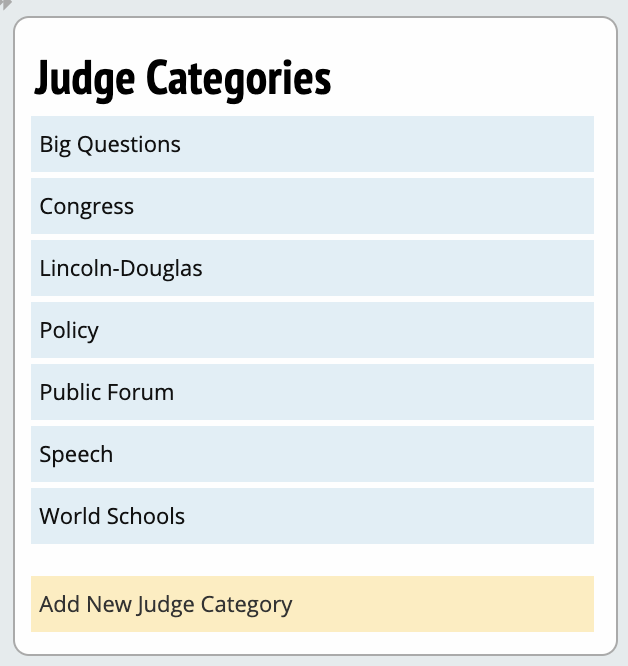
After you click Add New Judge Category, you will see this screen:

In this screen, you need to enter a name for the judge category and click "Save Registration Settings" before you can fill out the other settings on this page.
Register
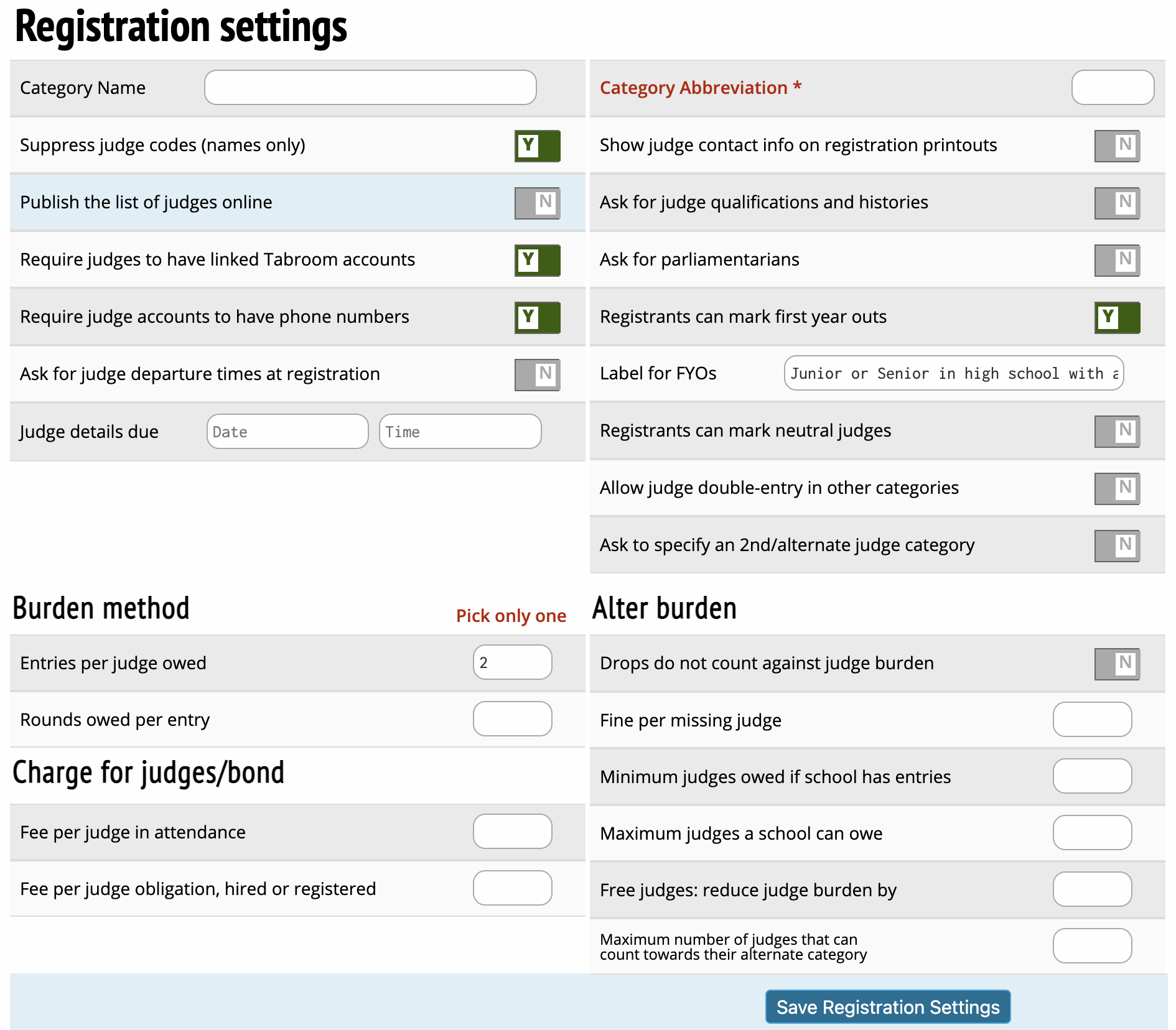
Category Name - This is just the name of the judge group. Should usually be something like "Policy" or "Individual Events."
Suppress judge codes (names only) - When checked, judges will appear on schematics and registration information with their names, instead of a judge code like "733."
Publish the list of judges online - Controls whether the list of registered judges will be available on your tournament's public website.
Require judges to have linked Tabroom accounts - Toggle this button to force all judges to have their judge entries "linked" to a Tabroom account, which is necessary for online ballots to function correctly.
Require judge accounts to have phone numbers - Toggle this button to require that coaches enter a phone number for their judge during registration if they do not have one in their profile.
Ask for judge departure times at registration - Toggle this button to require coaches to enter when their judges will no longer be available to judge at the tournament during the registration process.
Judge details due - This sets the deadline for entering judge notes, availability, and required information. This will override the judge deadline set at Settings > Tournament > Dates for this judge category if the deadline set is before the overall tournament deadline.
Entries per judge owed - Enter a value here if you want to require one judge for a certain number of entries in the events in this judge category. For example, you can require schools bring 1 judge per 4 entries in speech.
Rounds owed per entry - Enter the number of rounds of judging required to "cover" each entry. For example, each LD entry carries an obligation of 3 rounds.
Fee per judge in attendance - Enter a value to charge a school per judge entered.
Fee per judge obligation, hired or registered - Enter a value to charge a school based on the total amount of judge obligation for their school.
Abbreviation, max 4 letters: - This abbreviation will be used in various places throughout Tabroom to make things easier to read and make printouts align better, etc. It's recommended you set an abbreviation for each judge group.
Show judge contact info on registration printouts - Toggle to show judge contact information on the registration printouts found at Entries
Schools > Select School > "Registration" under Printouts.
Ask for judge qualifications and histories - This option will ask registering schools to provide a short description of each judge's qualifications and judging history. Note that this is separate from and in addition to the normal judge Paradigms.
Ask for parliamentarians - Toggle to ask schools to mark judges qualified and/or interested in being parliamentarians for Congressional Debate.
Registrants can mark first year outs - When checked, registering schools will be given the option of marking a judge as a "first year out," i.e. that it's their first year judging after graduating from high school. You can then use other options in the Judge Group and Event settings to make first-year out judges free strikes, prevent them from seeing certain events/divisions, etc.
Label for FYOs - If you want registering schools to be able to mark judges as something other than "first year out", enter the label here. For example, you could have coaches mark their judges as "student judges".
Registrants can mark neutral judges - Registering schools will be able to mark judges they enter as "neutral," which means that they are allowed to judge their own school's entries. This can be useful when schools bring judges to the tournament who aren't actually affiliated with their program, do no coaching, and would not normally be considered "constrained" from judging that school.
Allow judge double-entry in other categories - This lets schools enter judges in multiple judge categories. You should only enable this option if you're sure that your schedule contains no overlap or if you plan to deactivate duplicate judges, otherwise it's very easy to find yourself with double-scheduled judges that can't actually be in two places at once.
Ask to specify an 2nd/alternate judge category - This will ask the registering school to provide an "alternate" category for the judge, so that you can move judges into their "second choice" judge category if necessary. For example, this can help to even out judge numbers between events.
Drops do not count against judge burden - Toggle to allow dropping entries to reduce a school's judging obligation, even after the judge deadline has passed.
Fine per missing judge - A fee for each missing judge will automatically be added to the school's invoice. This option is only available if you're using the "entries per judge" burden method.
Minimum judges owed if school has entries - The minimum number of judges each school owes, regardless of their obligation set under "burden method". This option is only available if you're using the "entries per judge" burden method.
Maximum judges a school can owe - The maximum number of judges each school owes, regardless of their obligation set under "burden method". This option is only available if you're using the "entries per judge" burden method.
Free judges: reduce judge burden by - This option will automatically subtract the number of free judges you list from the number of judges each school owes. This option is only available if you're using the "entries per judge" burden method.
Maximum number of judges that can count towards their alternate category - If you allow judges to choose an alternate category in which to judge, this allows you to set a cap on the number of judges a school can count in that alternate category.
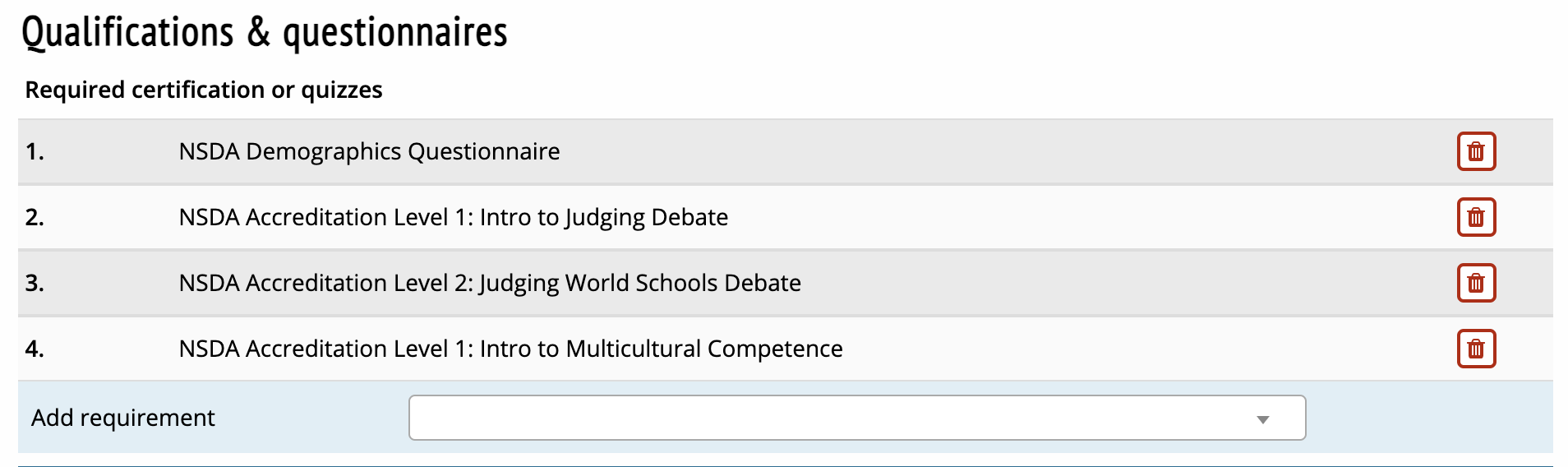
Qualifications & Questionnaires - This section allows you to require judges to complete particular trainings in order to judge at your tournament.
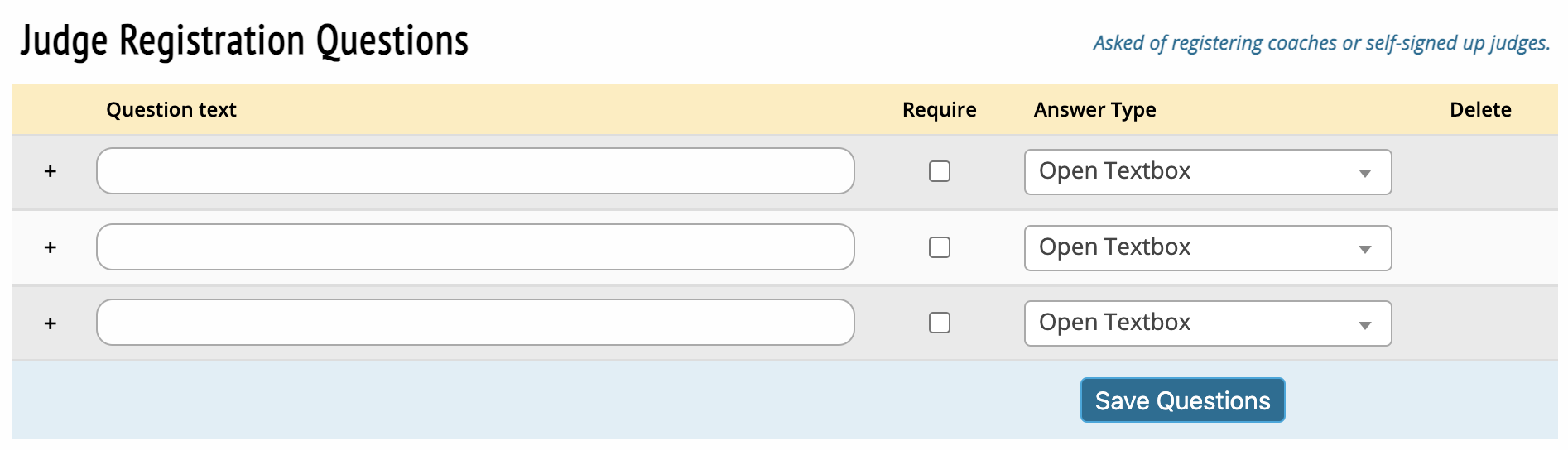
Judge Registration Questions - This section allows you to ask judges particular questions related to following the set rules of your tournament, etc. You can craft free response questions, questions that only require a yes/no answer or questions that require numerical answers.
Hires
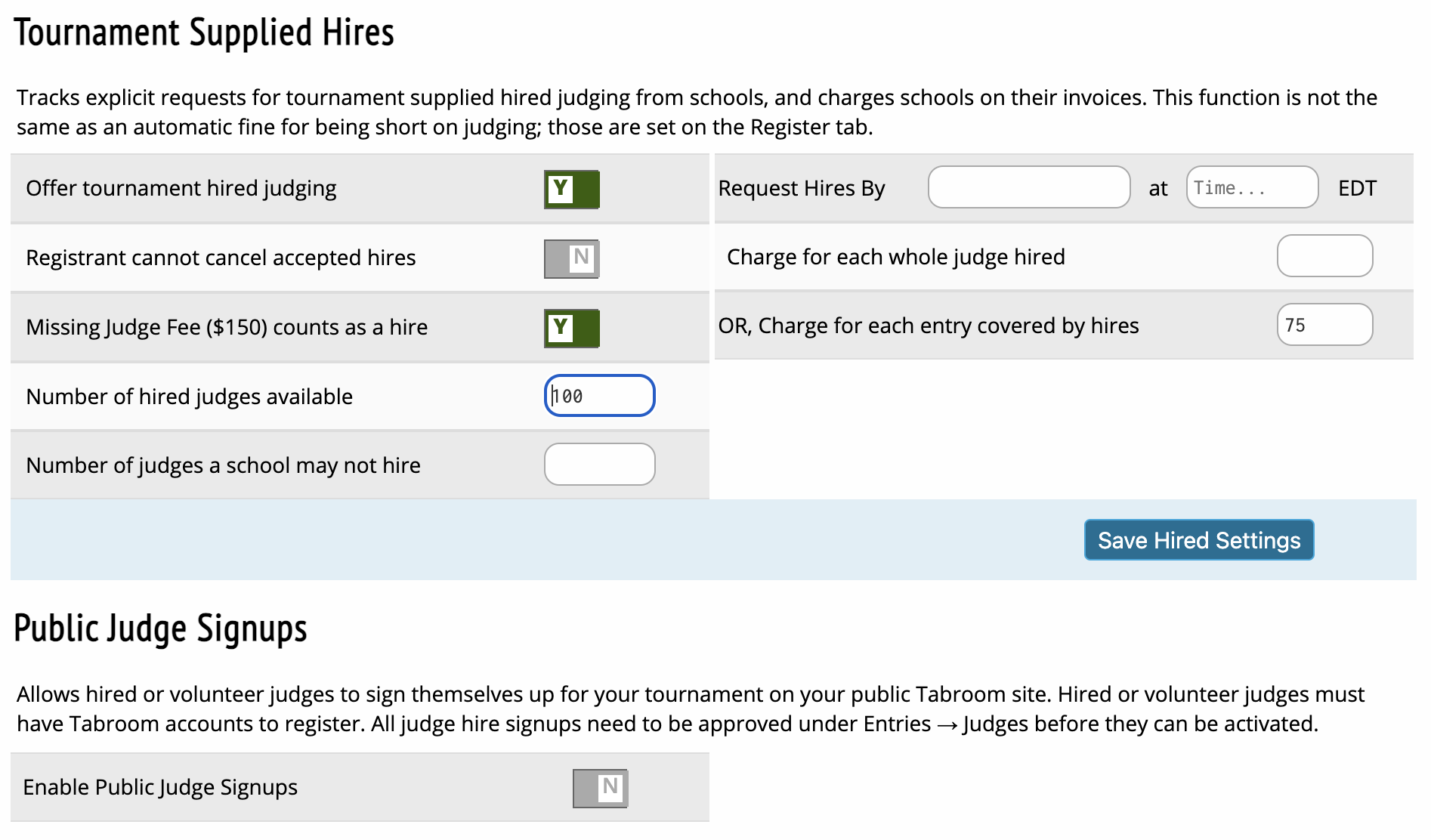
Offer tournament hired judging - Unlike the Hiring Exchange, which lets judges and schools match up judging themselves, this option enables offering judging provided directly by the tournament.
Registrant cannot cancel accepted hires - Toggle to prevent schools from cancelling hired judging and related charges.
Missing Judge Fee ($150) counts as a hire - Toggle this button to set the missing judge fee as the same as fee for a hire.
Number of hired judges available - You can set the total number of judges that you have available to hire here.
Number of judges a school may not hire - This allows you to set the number of judges that schools may not hire out.
Request Hires By - Set a time and date that cuts off schools from requesting hired judging.
Charge for each whole judge hired - Choose either this option or "charge for each entry". This option adds a per-judge fee, e.g. "hiring one judge in this category costs $200".
Charge for each entry covered by hires - Choose either this option or "charge for each whole judge". This option allows schools to purchase judge coverage on a per-entry basis. For example, "hire judging to cover LD entries at $50 an entry".
Enable Judge Exchange - This will enable a "Hiring Exchange" for your tournament. Judges will then be able to "offer" hired rounds of judging, (see the section on Judging), and schools registering will be able to "claim" offered rounds. The tournament director must approve hiring offers before they will appear in the exchange under the Entries
Judges menu.
Conflict exchange-hired judging - This option conflicts judges from the school that hires them when the school hires the judge off the Tabroom exchange.
Enable Public Judge Signups - This option will allow judges to register for your tournament on your public Tabroom site. Use this to have hired or volunteer judges sign in with their own information and Tabroom accounts. Enter a message for the public signup page under the Messages tab. All publicly signed up judges will be marked INACTIVE to begin; you must activate them before they will be available to judge.
Signup Deadline - This is the deadline for judges to register for your tournament on your public Tabroom site.
Tabbing
Pairing Settings
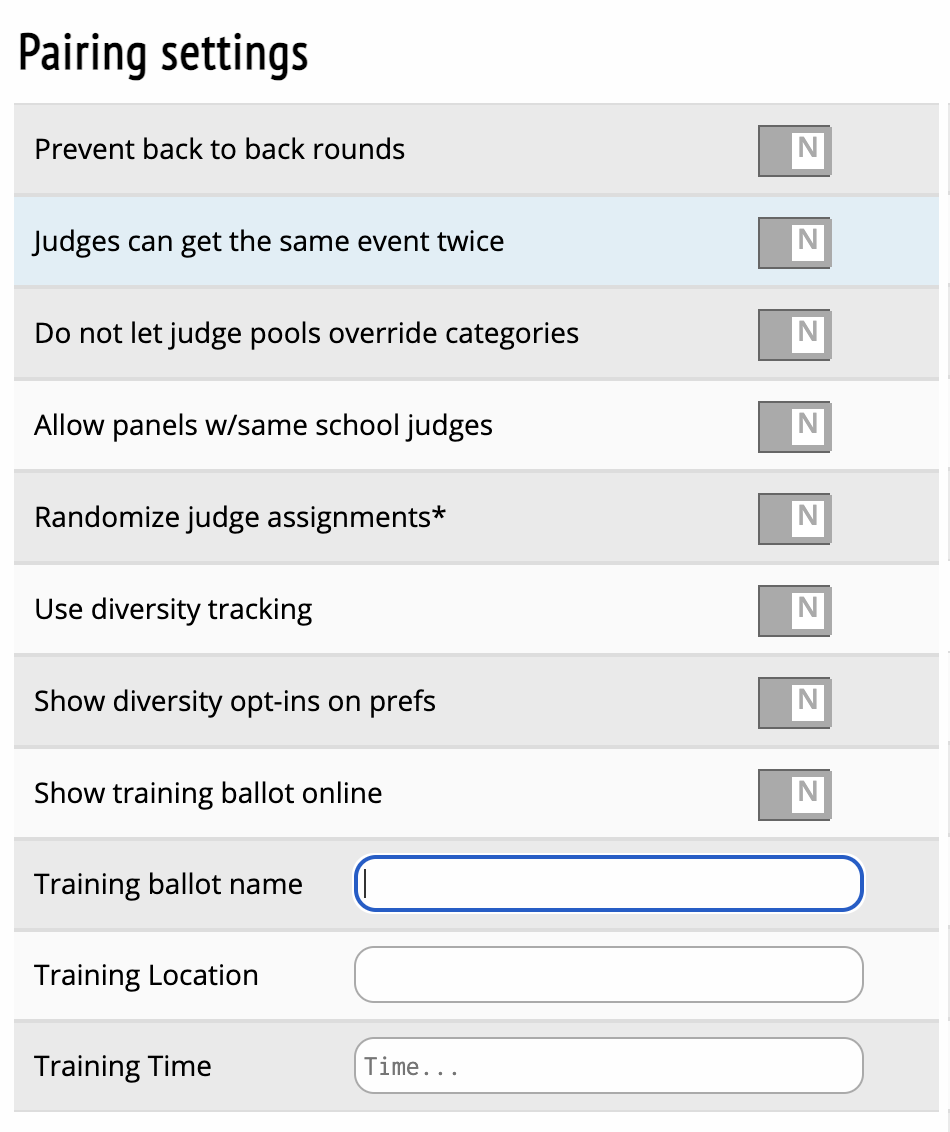
Prevent back to back rounds - Toggle to not allow judges to judge two consecutive rounds.
Judges can get the same event twice - Toggle that allows judges to judge multiple rounds in the same event if there are multiple events covered by this judge category.
Do not let judge pools override categories - Toggle to allow judge pools created for events to override the judge categories that you created before the tournament started.
Allow panels w/same school judges - Toggle to allow panels of judges to have more than one judge from the same school.
Allow panels w/same region judges - Toggle to allow panels of judges to have more than one judge from the same region.
Randomize judge assignments - Toggle to allow Tabroom.com's default to randomize judges when pairing rounds.
Use diversity tracking - Toggle to use this feature to keep track of diversity enhancing judges that are used throughout your tournament.
Show diversity opt-ins on prefs - Toggle to allow judges to mark themselves as a diversity enhancing judge.
Show training ballot online - Toggle to allow new judges' ballots to be posted online.
Training ballot Name - Allows you to label any training ballots.
Training Location - Allows you to set the location where training is taking place.
Training Time - Allows you to set the time when a training session will begin.
Tabulation Settings
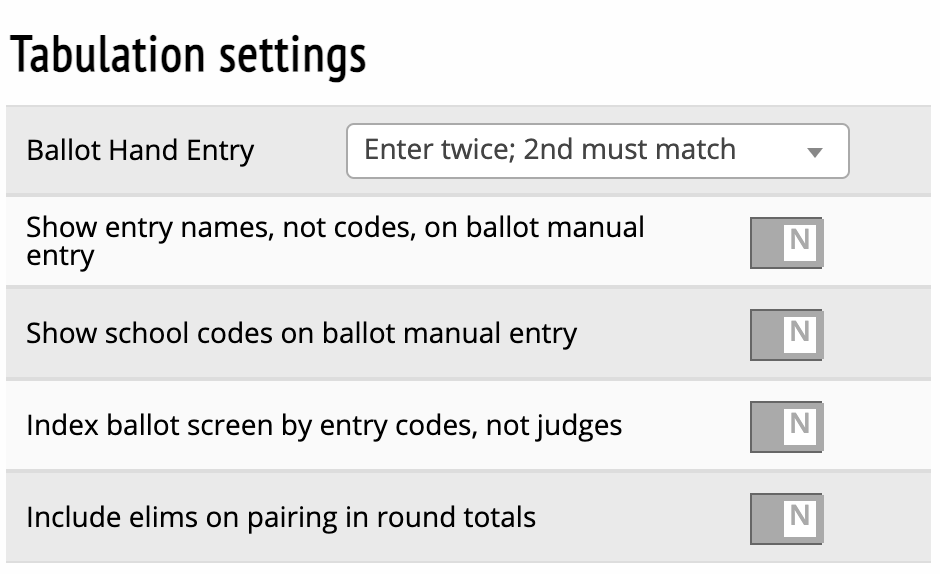
Ballot Entry Method - Choose which method to use for confirming/double-checking ballot entry. Your choices are:
- "Enter twice; 2nd must match" - Each ballot must be entered twice before showing as complete (preferably by two different people, to prevent mistakes).
- "Visual scan with confirmation" - After entering a ballot, you will be shown a review of your entered data and asked to confirm it.
- "Live dangerously; no required double-check" - This option will mark a ballot as completed after a single entry, though you can still double-enter them if you wish, and will be notified of any mismatch.
Show entry names not codes on ballot manual entry - Toggle to allow entry names, rather than codes, on judge ballot entry screen.
Show school codes on ballot manual entry - Toggle to allow codes, rather than entry names, on judge ballot entry screen.
Index ballot screen by entry codes, not by judges - This allows the ballot entry screen to be organized based on entry codes rather than by judge names.
Include elims on pairing in round totals - This controls whether or not the pairing will include elims in the round totals as the tournament progresses.
Ballot Options
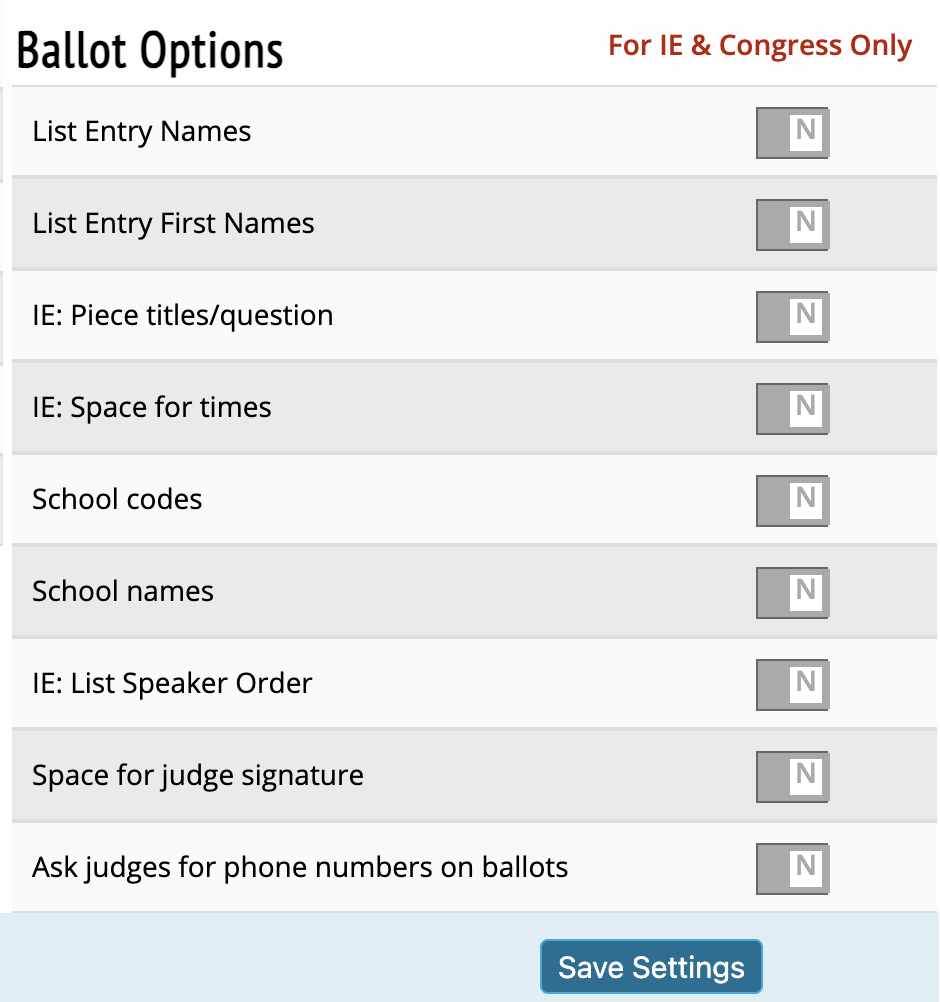
All toggle buttons under this heading allows you to specifically tailor ballots for speech and Congress at your tournament.
Ratings
Strikes, judging ratings, mutually-preferred judging

Judge registration deadline - Allows you to set a deadline for judges to be entered in your tournament if you want that deadline to be earlier than the tournament one.
Prefs open - Allows you to set the date and time coaches can begin to complete judge preferences.
Prefs due - Allows you to set the date and time that judge preferences close.
Registration Settings
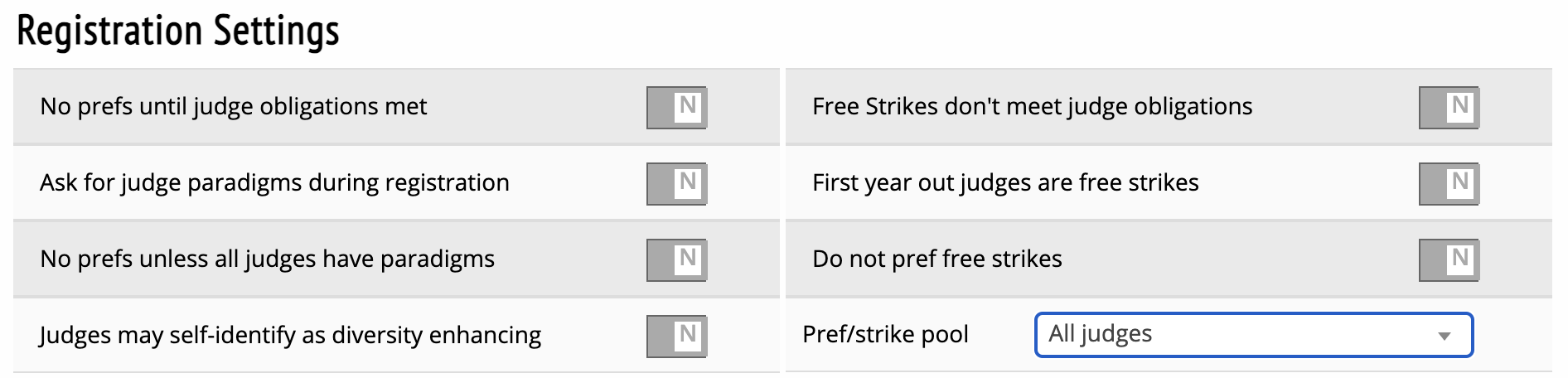
No prefs until judge obligations met - Toggle if you want to prevent schools, that haven't met their judge obligations, from completing prefs.
Ask for judge paradigms during registration - Toggle if you want to allow schools to enter missing judge paradigms when completing registration.
No prefs unless all judges have paradigms - Toggle if you want to prevent schools that have judges who are missing paradigms, from completing prefs.
Judges may self-identify as diversity enhancing - Toggle to allow judges to mark themselves as diversity enhancing.
Free Strikes don't meet judge obligations - Toggle to prevent free strikes (ex: first year outs or others you may set) from countering toward pref judge obligations.
First year out judges are free strikes - Toggle to make sure all first year out judges are free strikes on pref sheets.
Do not pref free strikes - Toggle to make sure coaches cannot pref those identified as free strikes.
Pref/strike pool - This allows you to select which judge pools that prefs and strikes will apply to.
Conflicts
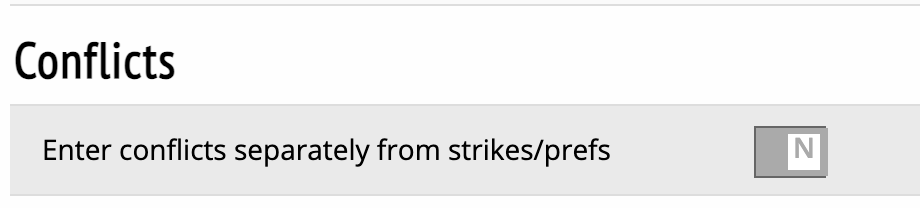
Enter conflicts separately - Toggle to allow coaches to enter judge conflicts separately from prefs.
Strikes
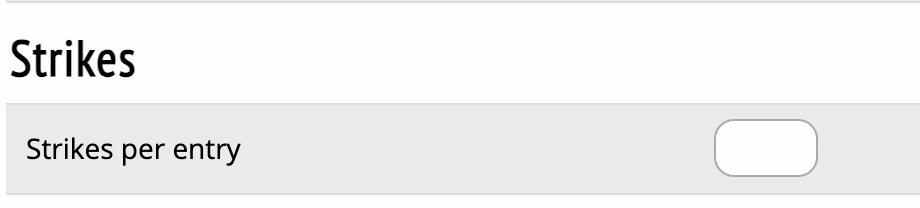
School-wide strikes/scratches - Allows you to set a maximum number of judges who can be rated as strikes by a school.
Per-entry strikes/scratches - Allows you to set a maximum number of judges who can be rated as strikes by an entry.
Mutually Preferred Judging
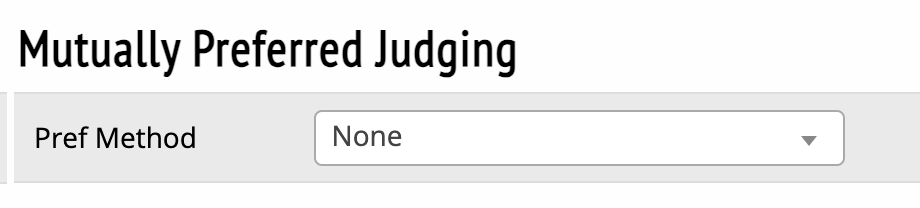
Pref Method
-
MPJ Tiers (by whole judge) - This MPJ method allows you to rank judges based on pref tiers that the tournament sets. However, prefs are based upon the total rounds judge are entered for rather than by round.
-
MPJ Tiers (by round) - This MPJ method allows you to rank judges based on pref tiers that the tournament sets. Common tiers in this method are 6-tiers or 9-tiers with the lowest tier being set as strikes. This is the most common method used at the high school level.
-
MPJ Ordinals - This MPJ method allows you to rank every judge in the field from 1-the total number of judges in the field). This is the most common method used at the college level, with more high school tournaments using this method.
-
Whole Number Caps - This MPJ method allows you to rank judges using a particular numerical cap you have chosen each judge category.
Extra 1s = less 2s, etc - Toggle this to allow coaches to rank more judges in the top tier and less in lower tiers as long as tier rankings are cumulative to the total required.
MPJ Placement Weights
This section controls the "weights" used to compute mutually preferred judging scores. For example, it allows you to control whether the judge placement algorithm privileges "mutuality" more than "preference" or how important it is to try and "save" committed judges for later rounds.
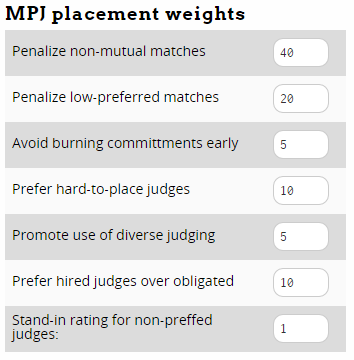
These numbers are not "percentages," per se - they don't need to sum up to 100. Instead, they are "weighting factors" which are relative to one another.
The following explanation is somewhat technical - if you're not sure how to assign or tweak the MPJ weights, you can just use the default values.
The way MPJ works is by testing out each judge in each round, and computing a "score" for how well that judge fits. Tabroom will then try and find the mix of judges that gives the overall "best" combined score across all debates.
For each round/judge pair, the "score" is computed as the sum of: 1) The difference in mutuality (e.g. in a tiered system a 2-2 = 0, a 1-2 = 1, etc., for ordinals, a 46-38 = 8, a 23-28 = 5, etc), multiplied by the "Penalize non-mutual matches" weight. 2) The total preference (e..g a 1-1 = 2, 2-2 = 4, or with ordinals, a 25-35 = 60), multiplied by the "Penalize low-preferred matches" weight. 3) The likelihood a round of commitment will be lost, raised to the power of the "Avoid burning commitments early" weight. Note that this is an exponent, not a simple multiplication, so this number will likely be much lower than the other weights. 4) The average pref of the judge for all entries, minus the standard deviation of their pref from the average pref of the judge group, multiplied by the "Prefer hard-to-place judges" weight. 5) If in use, adds the "Promote use of diverse judging" weight for "diverse" judges. 6) If used, will increase the score for a Hired judge by the "Prefer hired judges over obligated" weight.
Put in terms of the options on the page:
Penalize non-mutual matches - This weight gets multiplied by the difference in mutuality between the two team's rating for the judge
Penalize low-preferred matches - This weight gets multiplied by the total preference, i.e. the sum of the two team's rating for the judge
Avoid burning commitments early - The likelihood a round of commitment will be lost by placing a judge is raised to this power. Note that this is an exponent, not a simple multiplication, so this number will likely be much lower than the other weights.
Prefer hard-to-place judges - This weight is multiplied by the average pref of the judge, minus the standard deviation of their pref from the average pref of the judge group.
Promote use of diverse judging - This weight control how important the use of "diverse" judges is in the final score.
Prefer hired judges over obligated - This weight is added to hired judges to make it more likely they will be placed than
Stand-in rating for non-preffed judges: - This is not a "weight" used in the MPJ algorithim, but instead is the value used for judges who were not given a pref by a team. For example, if a team only filled out a partial pref sheet, you could choose whether you wanted unranked judges to be a "1" or some other number.
The built-in defaults should work fine for most situations. If you're so inclined, Palmer has this to say about his usual personal defaults for tiered MPJ systems:
- Penalize non-mutual matches = 65
- Penalize low-preferred matches = 20
- Avoid burning commitments early = 5 (8 if in a very tight judging situation)
- Prefer hard-to-place judges = 10
For ordinal preference systems, the following weights work well:
- Penalize non-mutual matches = 25
- Penalize low-preferred matches = 10
- Avoid burning commitments early = 7 (8 if in a very tight judging situation)
- Prefer hard-to-place judges = 10
If you wonder at some point why it placed judge X instead of judge Y, you can look at an individual round (by clicking on the room number on the schematic), and then click "Judge Pref Report" on the sidebar. This will show you the judge score for all available judges in the debate, so you can see how you could change the weights to achieve a different goal.
For example, if you were getting a lot of 3-3 pref matchups, and would prefer more 1-2's (i.e. increase pref at the expense of mutuality), you could turn down the "Penalize non-mutual matches" score to 50.
Other Ratings
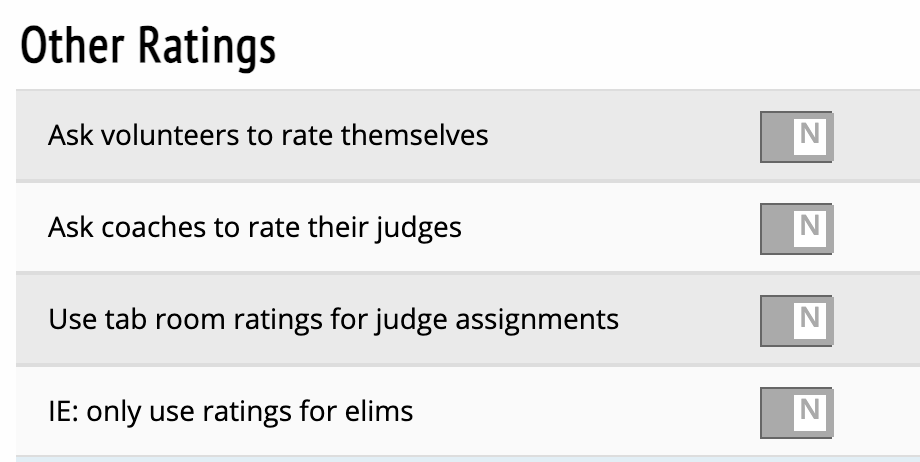
Ask volunteers to rate themselves - Toggle to allow volunteer judges to rate themselves based upon a scale that the tournament sets up.
Ask coaches to rate their judges - Toggle to allow coaches to rate the judges that they provide to the tournament.
Use tab room ratings for judge assignments - Toggle to allow your tournament to use general tab room ratings instead of setting your own MPJ method.
IE: only use ratings for elims - Toggle to allow speech events to use ratings in the elimination rounds (rarely, if ever, used).
Shifts
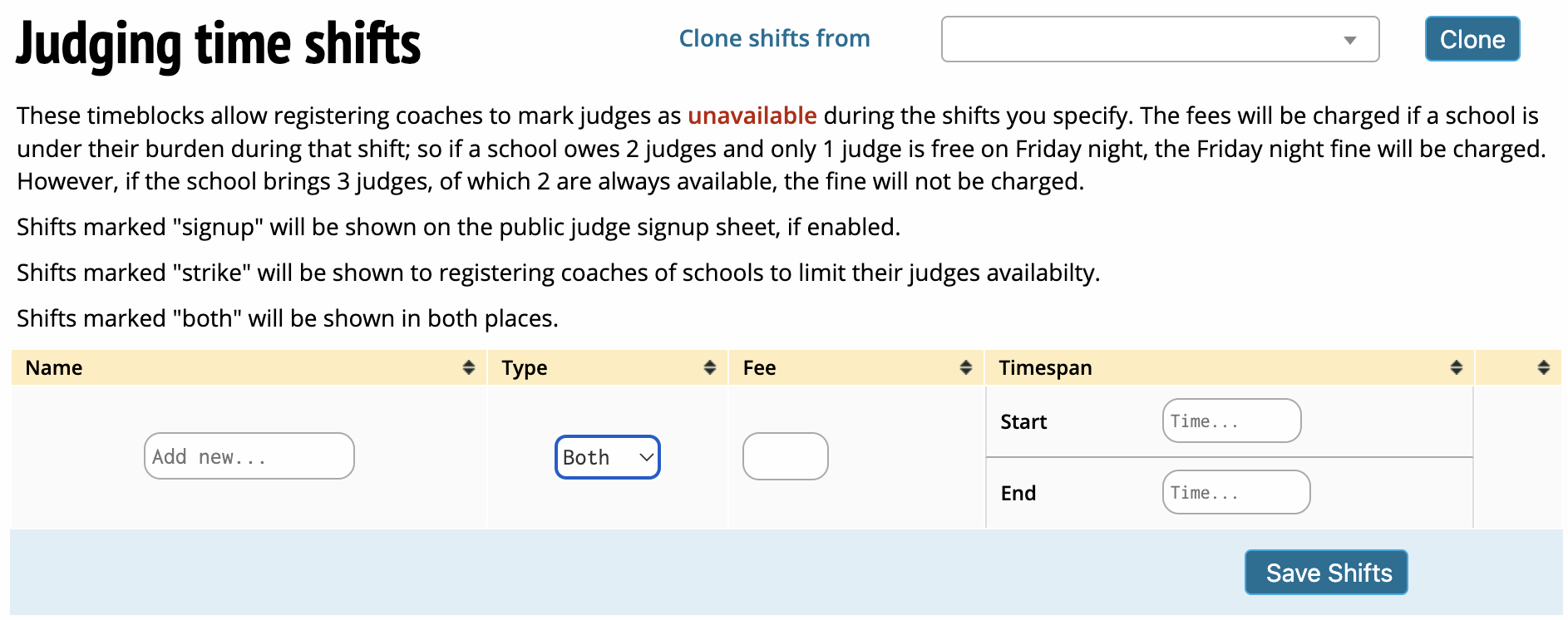
Name - This is where you add each day of the tournament for which you will allow time shifts.
Type - This allows you to choose the type of shift you will use for your tournament. Shifts marked 'Signup' will be made visible on a public judge signup sheet. Shifts marked 'Strike' will be shown to registering coaches so they can limit their judges' availability. Shifts marked 'Both' will be shown on the public judge signup sheet and to registering coaches.
Fee - This is where you set the amount that each school is charged if the school is under its judge burden during the requested time shift.
Timespan - This is where you will set the times, for each day of the tournament, when you will allow judges to be unavailable.
Pools
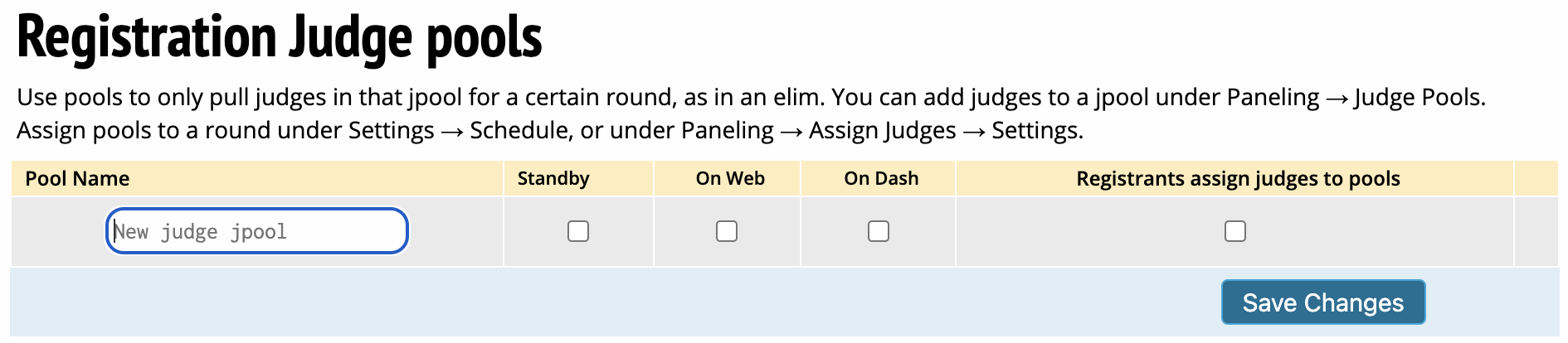
Pool Name - This is where you create labels for specific pools in each judge category. For example, you have a Policy judge category. You may choose to create a label for 'Policy Elims' or 'Policy Quarterfinals.'
Standby - If checked, the particular pool is designated as a standby pool for a particular round.
On Web - If checked, the particular pool is posted publicly on Tabroom.com
On Dash - If checked, the particular pool will be visible on the dashboard of each judge in that pool.
Registrants assign Judges to pools - If checked, registering coaches will be able to add their judges to any of the registration judge pools as they are signing up for the tournament.
Site - This will allow you to set the site where a particular pool will be used if you have different events at distinct buildings or locations.
Messages
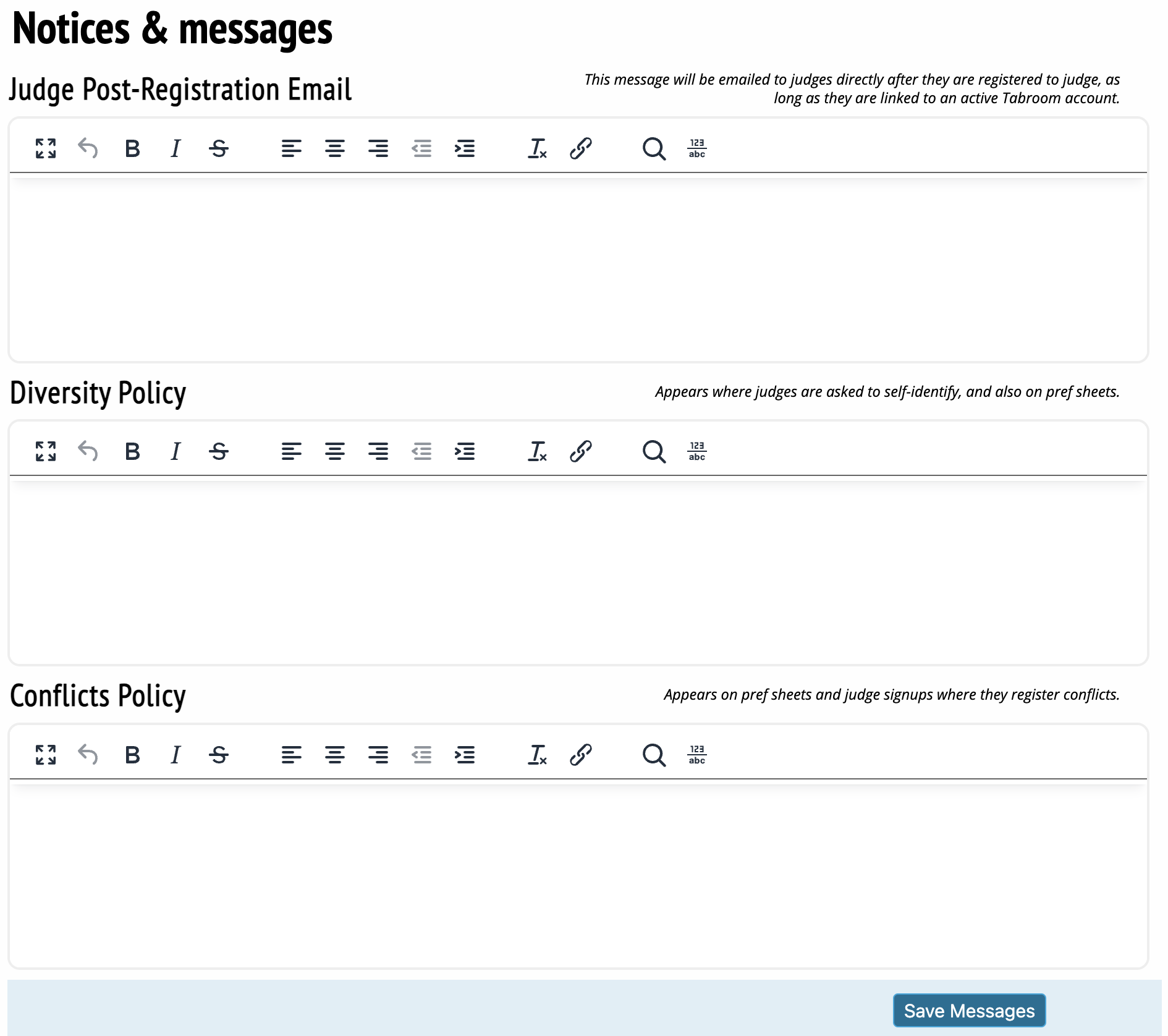
Judge Post-Registration Email - This is where you send messages to judges once they have registered. Only judges with linked Tabroom accounts will get these emails.
Diversity Policy - This is where you set and share any diversity policy for your tournament. This will be visible on judges' accounts when they self-identify as diversity enhancing and on pref sheets.
Conflict Policy - This is where you set and share particular tournament policies related to judge conflicts. This will be visible on judge signup sheets where they register conflicts and on pref sheets.